

Pictured: GTA VI in Bigscreen.
On November 19, over 13 years since the release of its predecessor, Grand Theft Auto VI finally arrives. And curiously, half the office has an 8-hour dentist appointment on Thursday. Strange...
We are incredibly excited, and a game this big deserves a big screen. Maybe you have a 100-inch OLED TV in a home theater with 11.4.4 surround sound and a sofa that has perfectly conformed to your body over years of use. If so, congratulations, go enjoy the game. Or, hear me out: what if you played it on the Bigscreen Beyond 2?
Because if you do, you'll have access to a screen that is even BIGGER, in a headset that weighs just 107 grams. It has the same perfect OLED blacks and each of your eyes receives as nearly as sharp of an image as your 4K TV. We're gonna show you how to play GTA VI on the Bigscreen Beyond on launch day, and how you can be among the first people on Earth to play GTA VI in VR.
First, the honest part

Grand Theft Auto VI. Image: Rockstar Games. Watch the GTA VI trailers.
GTA VI launches on PlayStation 5 and Xbox Series X|S only. There is no announced PC release (but rumors say it might be coming in Q1 2027), and Rockstar hasn't said anything about the potential for a VR mode. So this VR experience will be less "you are standing on a street corner in Vice City" and more "you are sitting in your own private cinema with a screen the size of a building." Trust us, it's still a great way to play.
First up, we'll need a way to see the screen.
Bigscreen Beta: your private cinema

Pictured: Bigscreen Beta.
Bigscreen Beta is our own app, and it is where this company started, long before we made headsets. It is free on Steam. It takes whatever is on your PC's desktop and puts it on a huge virtual screen in an environment of your choice: a cozy home theater, a penthouse, or an IMAX-sized cinema where the screen fills your whole view.
Two things make it special for a game like this:
- The room reacts to the screen. The environments have dynamic screen lighting, so a neon sunset over Vice City washes the seats and walls in pink, and a nighttime chase drops the whole cinema into darkness. It is the same effect as a real cinema, where the film lights the room.
- You can bring friends. Invite people into your room and they sit in the seats next to you and watch you play, wherever in the world they live. Passing the controller is the only thing that does not work yet.

Vice City after dark. Image: Rockstar Games.
Step one: connect your console to your PC
You can't use your Beyond 2 with a console, just your PC. This means we need to get your console's output to the PC. There are two ways to do it. One is free, the other gives you less delay.
The free way: Remote Play
Both consoles can stream the game to a window on your PC over your home network. You plug your controller into the PC and play as usual.
- PlayStation 5: On the console, go to Settings, System, Remote Play and switch on Enable Remote Play. On your PC, install Sony's free PS Remote Play app, sign in with your PlayStation account and connect your DualSense with a USB cable.
- Xbox Series X|S: On the console, go to Settings, Devices & connections, Remote features and tick Enable remote features. On your PC, open the Xbox app, pick your console and connect your controller with USB or Bluetooth. You can also connect using a browser.
Both stream at 1080p/60 fps, but Xbox is now testing 1440p Remote Play with select Xbox Insider users. We highly recommend using a wired Ethernet connection for your PC and console for Remote Play. While a good Wi-Fi connection is more than enough, it's prone to interference, which can result in compressed video feeds or gameplay latency.
No Networking Required: Capture Cards
To really maximize your image quality and lower your latency, you can use a capture card. While capture cards usually have negligible latency when passing a signal directly through to a display, we need a capture card with low preview latency. The preview is the video feed sent to your computer for viewing or recording.
And note that not all capture cards are made equal. However, there are a couple of capture cards that tout preview-based gaming: the Elgato 4K Pro, Elgato 4K S, and Elgato 4K X. Elgato advertises preview latency as low as 30 ms for the 4K S on capable setups, and an Elgato representative reported roughly 30–35 ms for the 4K Pro and 4K X in OBS at 1080p60 SDR. That is around twice as snappy as using Remote Play over Ethernet.

Elgato 4K S. Image: Elgato.
You run an HDMI cable from the console into it, and the console picture shows up on your PC like a webcam feed, with no network involved. Open the preview window full screen (the card's own software or the free OBS Studio both do this) and you are set.
A few things to know before you buy one:
- On PS5, switch off HDCP first (Settings, System, HDMI, Enable HDCP), or the card will show a black screen.
- Your controller stays connected to the console as normal, so there is nothing to set up there.
Step two: jump in!
With the game in a window on your desktop, start SteamVR, open Bigscreen Beta, pick an environment and make the screen as large as you like. Put the game window in full screen. That is it. You are sitting in an empty cinema and GTA VI is the film.
No base stations? Use 3DoF Mode

Pictured: 3DoF Mode in the Bigscreen Beyond utility.
You can also skip SteamVR completely. 3DoF Mode puts your desktop on a large screen in front of you using only the sensors inside the headset. No base stations, no SteamVR. Click the monitor icon in the Bigscreen Beyond utility, switch it on, and your Remote Play or capture window is floating in front of you. It is available now for NVIDIA graphics cards, with AMD support on the way.
It is the quickest way to get playing, and it is perfect for a laptop and a hotel room. For a more social experience that you can share with your friends, you'll have to go into the cinema in Bigscreen Beta.
Zero distractions. Maximum immersion.

Vice City by day. Image: Rockstar Games.
It's hard to explain it before you try it. In a headset, the game is the only thing that exists. You are separated from the outside world. There is no phone lighting up on the armrest, no lamps reflecting on your TV screen, no laundry pile in the corner of your eye.
The screen is as big as you want it, the room is dark, and the headset is light enough that you forget it after a while. Three hours later, you take it off and are honestly surprised to find yourself at home.
Why Beyond 2 is perfect for GTA VI in VR

Pictured: Bigscreen Beyond 2.
Any PC VR headset can show a virtual screen. But a long session in front of a giant screen is exactly what the Beyond 2 was built for, and four things make the difference.
- OLED, not LCD. The Quest 3 and Steam Frame use LCD panels, where blacks end up having a dark gray glow that harms contrast and immersion. The Beyond 2's micro-OLED displays can turn individual pixels entirely off, so if the image is black, it will actually be BLACK.
- Resolution where a screen needs it. A virtual screen only uses part of the headset's display, so every pixel counts. The Beyond 2 has 2560 x 2560 pixels per eye, against 2064 x 2208 on the Quest 3. That is the difference between reading the minimap and street signs comfortably and squinting at them.
- 107 grams. The Quest 3 weighs about 515 grams, nearly five times as much, and most of it sits on the front of your face. That is fine for half an hour of Beat Saber. GTA VI is a game people will play for five hours at a time, leaning back on a sofa. The Beyond 2 is closer to a pair of ski goggles than a helmet, and after a while, you stop noticing it is there.
- A straight cable to your PC. The Beyond 2 plugs into your graphics card with DisplayPort, so what your PC draws is what you see. A Quest 3 gets its PC picture as compressed video, over Wi-Fi or USB. Your console stream has already been compressed once on its way to the PC. Compressing it a second time adds even more visual artifacts.
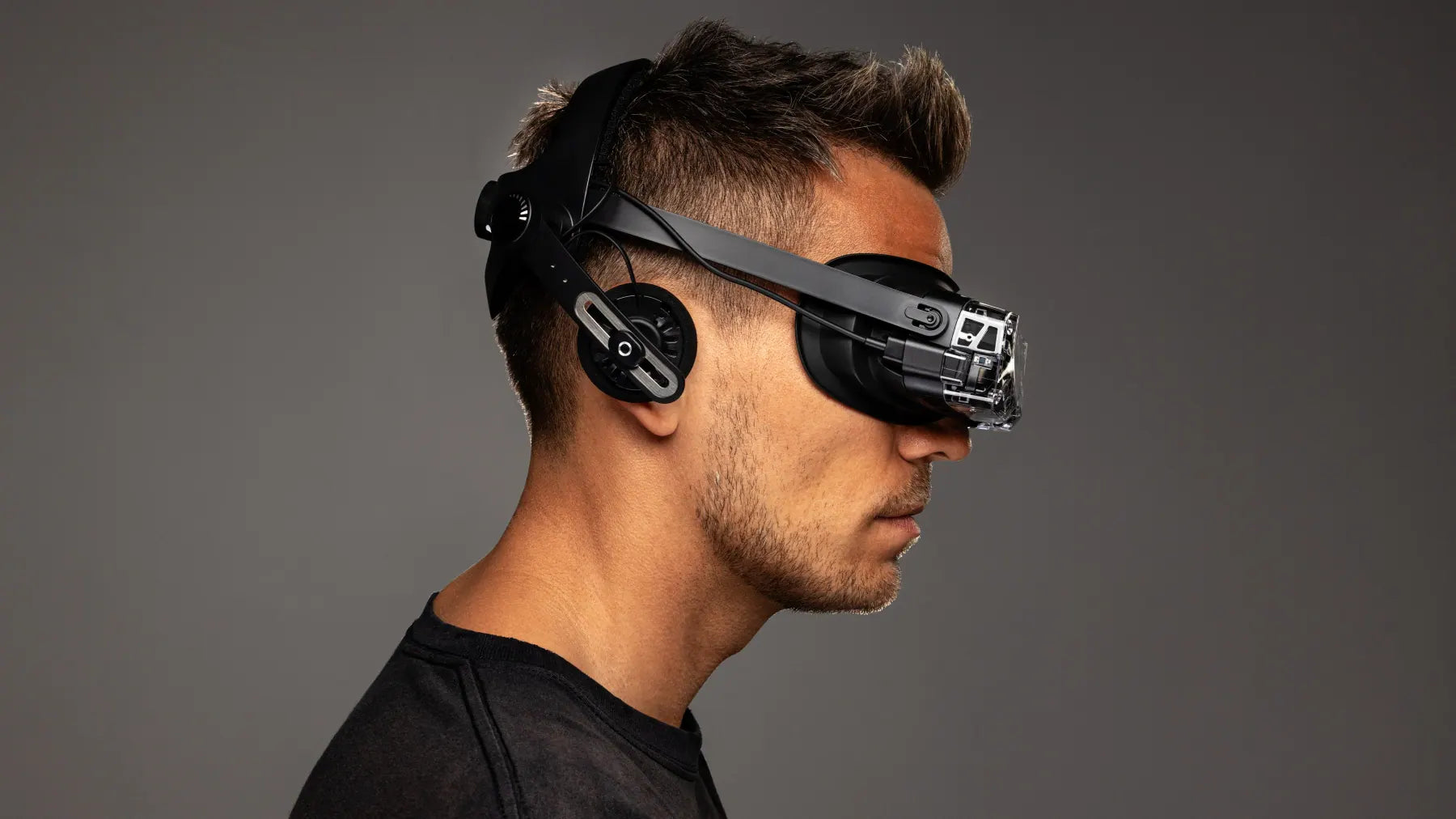
Pictured: the Beyond 2 optics and micro-OLED displays.
It is also small enough to live next to your controller. No battery to charge, no lengthy boot sequence: pick it up, put it on, press play.
Want to be inside the world? GTA V and Red Dead Redemption 2 in actual VR
If you want the real thing, where you are inside the world and not in front of it, Rockstar's last two games on PC have been playable in VR for years thanks to one modder, Luke Ross, and his R.E.A.L. VR mods. You play with a gamepad or mouse and keyboard, and the whole world is around you in full 3D.
Grand Theft Auto V
GTA V in VR with GTAVXR mod. Video credit: Gamertag VR.
Los Santos at true-to-life scale is a wonderful thing. The cars feel the right size, the Vinewood sign is properly far away, and flying a helicopter between the downtown towers will make your stomach move. If you want a gamepad experience, the original R.E.A.L. mod for GTA V is free and well made, but is no longer being maintained.
But just this week someone dropped a full 6DoF VR conversion mod with motion controls, called GTAVXR. Flying inside of a fighter jet stolen from the military base in VR will have you saying: "Davey, how ya doing?"
Red Dead Redemption 2
Red Dead Redemption 2 in VR. Video by Virtual Reality Oasis.
This is the one people go quiet in. Riding out of camp at dawn, mist in the valley, your horse's ears twitching in front of you: it is still one of the best-looking games ever made, and in VR it is a place. Sit by a campfire at night with an OLED headset on and you will see why we keep going on about black levels. PCVR Central's Red Dead Redemption 2 page has the current mod and install guide.
Both need a strong gaming PC, and both are single-player only. Keep VR mods away from GTA Online and Red Dead Online.
Will GTA VI get the same treatment? It needs a PC version first, and that has not been announced. If the last two games are anything to go by, someone will be working on it the week it lands. Until then, the cinema is open.
The TLDR
- Get GTA VI on your PS5 or Xbox Series X|S.
- Connect with Remote Play (free) or a capture card.
- Open it in Bigscreen Beta, or switch on 3DoF Mode if you have no base stations.
- Make the screen enormous. Drop out of life with controller in hand. See you in Vice City.
Try the setup with a game you already own first, so your first night in Vice City is full of shooting up trouble and not troubleshooting. And if you get it running, post a photo of your setup in our Discord.